天天下载 更新快、资源全,发现更多实用工具,就上天天下载!

Adobe Illustrator cs5如何使用连续复制?Adobe Illustrator cs5使用连续复制的技巧

更新时间: 2023-08-12 00:38 分类: 其他教程 人气: (165) 0个评论

今天为你们带来的文章是关于Adobe Illustrator cs5软件的,各位知道Adobe Illustrator cs5如何使用连续复制吗?下文天天下载就为大伙带来了Adobe Illustrator cs5使用连续复制的方法,感兴趣的用户快来下文看看吧。

Adobe Illustrator cs5如何使用连续复制?Adobe Illustrator cs5使用连续复制的方法

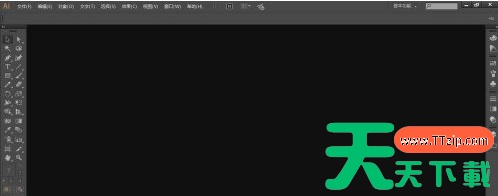
打开 Illustrator双击打开,Ctrl+N新建一个画布
Adobe Illustrator cs5如何使用连续复制?Adobe Illustrator cs5使用连续复制的技巧Adobe Illustrator cs5如何使用连续复制?Adobe Illustrator cs5使用连续复制的技巧

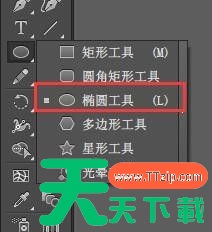
选择工具栏中的椭圆工具,颜色填充一个颜色,描边关闭

Adobe Illustrator cs5如何使用连续复制?Adobe Illustrator cs5使用连续复制的技巧

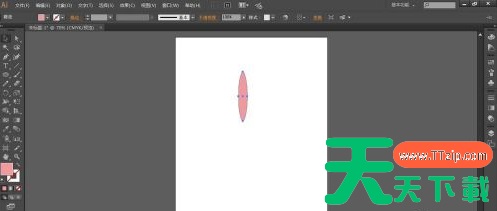
在画布中绘制一个椭圆

Adobe Illustrator cs5如何使用连续复制?Adobe Illustrator cs5使用连续复制的技巧

然后再选择“旋转工具”

Adobe Illustrator cs5如何使用连续复制?Adobe Illustrator cs5使用连续复制的技巧

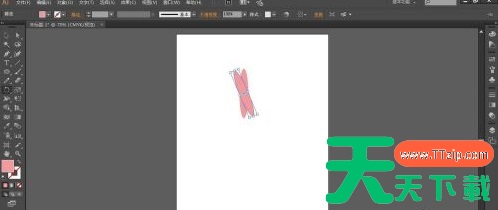
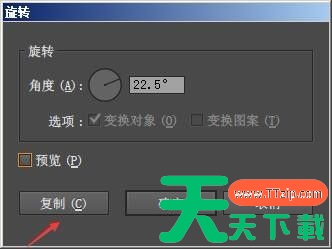
定位中心点,按住alt键在椭圆中心位置单击,在调出的选框中输入旋转数值:22.5°,点击复制
Adobe Illustrator cs5如何使用连续复制?Adobe Illustrator cs5使用连续复制的技巧Adobe Illustrator cs5如何使用连续复制?Adobe Illustrator cs5使用连续复制的技巧

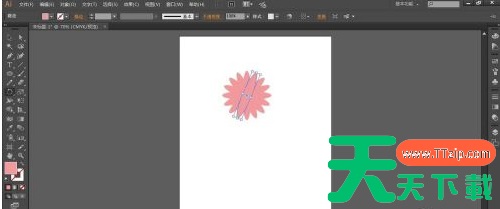
然后连续复制,ctrl+D,连续复制多次

Adobe Illustrator cs5如何使用连续复制?Adobe Illustrator cs5使用连续复制的技巧

以上就是Adobe Illustrator cs5使用连续复制的方法的全部内容,更多手机教程请关注天天下载!

@天天下载

除特别注明外,本站所有文章均为 天天下载 原创,转载请注明出处来自 https://www.ttzip.com/141647.html
8人喜欢